Launch and quit
There are three ways to launch the WebCam+.
- Direct launch from PC
- Starting from Elecom WebCam Assistant+ or a Web Meeting Application
- Starting from the Task Tray
Direct launch from PC
- Connect the web camera to the computer.
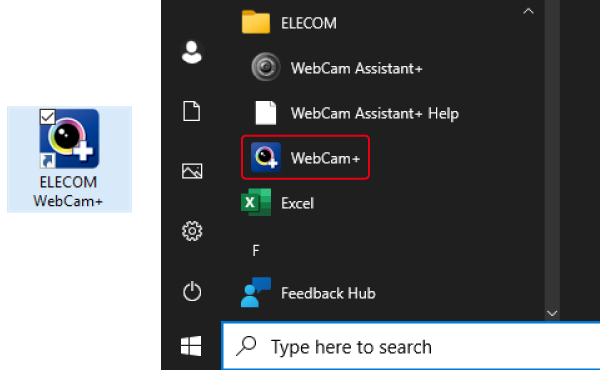
- Click the ELECOM WebCam+ icon on your desktop, or click the Start button, then [All Apps] - [ELECOM] - [ELECOM WebCam+].
Closing WebCam+
- Click the "X" in the upper right corner of the screen.
The app keeps running, and the processed video from the webcam keeps being sent to the WebCam assistant and the conference app.
Quitting WebCam+
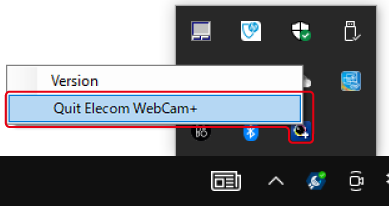
- Right-click the WebCam+ icon on the task tray, and select Quit.
Checking the Version
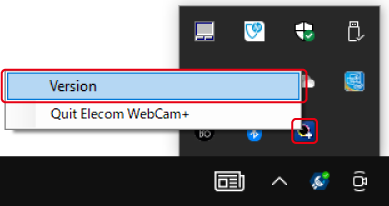
- Right-click on the WebCam+ icon in the task tray, and select Version.
Starting from Elecom WebCam Assistant+ or a Web Meeting Application
Starting from Elecom WebCam Assistant+
- Connect the web camera to the computer.
- Select [ELECOM WebCam+] from the camera selection in the ELECOM WebCam Assistant+ or Web Conference app.
For ELECOM WebCam Assistant, select [Settings] from the [Tools] menu, then select [ELECOM WebCam+] under [Video Device] in the [Device Settings] tab.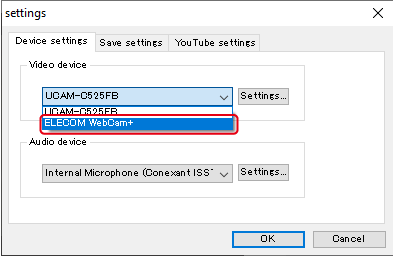
Starting from Cisco Webex Meetings
- Under Cisco Webex Meetings, click on “Start a Meeting.”
- Click on “Start a Meeting” on the screen displayed as well.
- Click on “Video Options” to the right of “Start Video.”
- Select “Advanced video settings”.
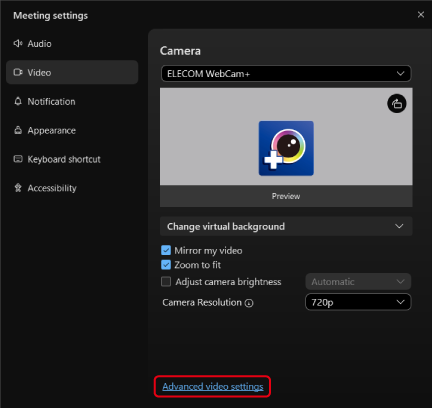
- From “Video Capture”, select “Microsoft DirectShow.”
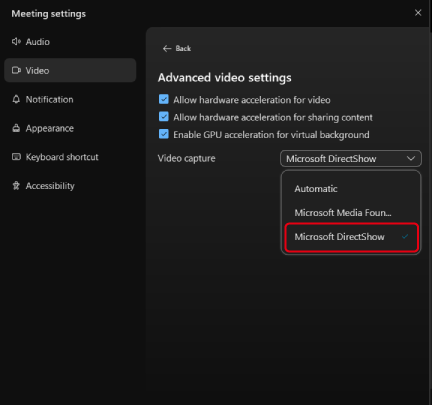
- Click “Back” in the upper left to return to the camera selection screen.
- From the camera list, select “ELECOM WebCam+” to start the application.
Starting from Webex
- Open the Webex settings.
- Select “Video.”
- Select “Advanced settings”.
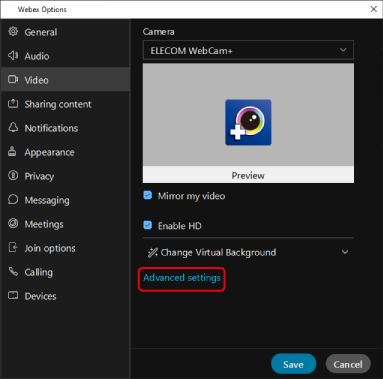
- From “Video Capture”, select “Microsoft DirectShow.”
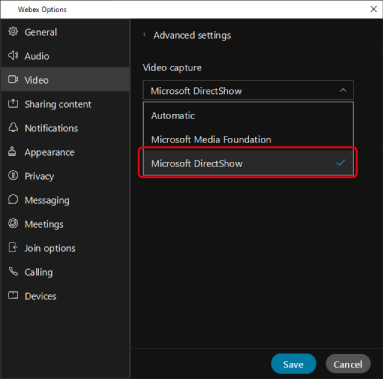
- Click “Advanced settings” in the upper left to return to the camera selection screen.
- From the camera list, select “ELECOM WebCam+” to start the application.
Starting from Zoom
- Open Zoom Settings.
- Select “Video.”
- Select “Advanced” in the lower part of the Settings screen.
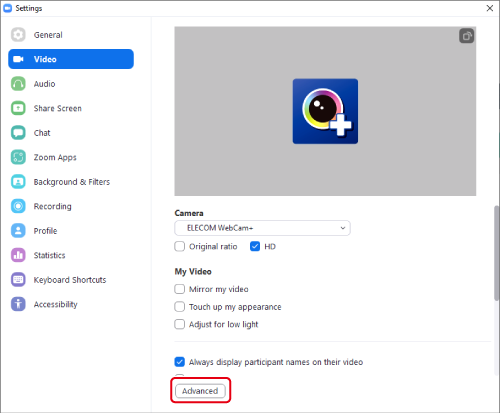
- Select “DirectShow” from “Video Capturing Methods”.
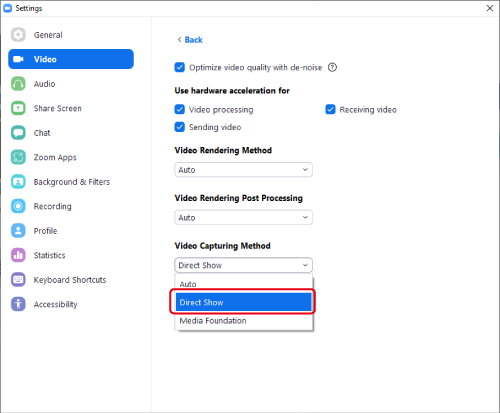
- Click “Back” in the upper left to return to the camera selection screen.
- From the camera list, select “ELECOM WebCam+” to start the application.
Starting from the Task Tray
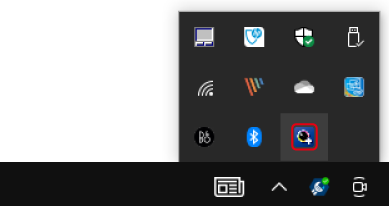
- When you start your computer, you will find the WebCam+ icon in the task tray.
Double-click on the WebCam+ icon in the task tray to display WebCam+.