Compliant model: MHT1MR, E01G
Trackball
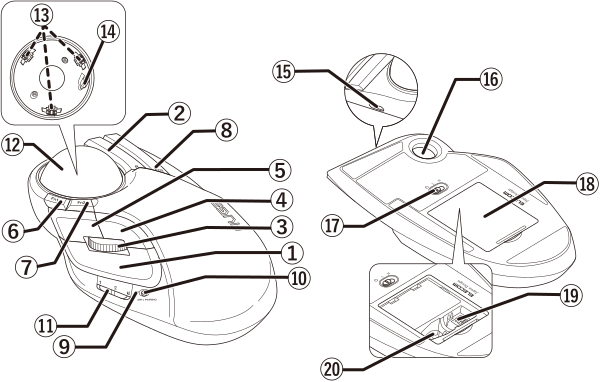
① Left button
To left click on your PC.
② Right button
To right click on your PC.
③ Tilt wheel
Rotate forward and backward or click like a button to operate your PC.
You can scroll horizontally by tilting the wheel to the left or right.
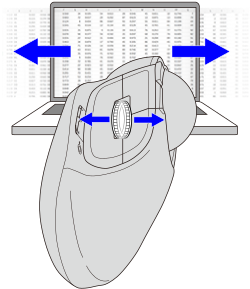
You will need to install the “ELECOM Mouse Assistant 6” from our website to use the left and right scroll function on Windows. Refer to “Install ELECOM Mouse Assistant 6”.
④ “Back” button
Perform the “Back” function on the Web browser.
⑤ “Forward” button
Perform the “Forward” function on the Web browser.
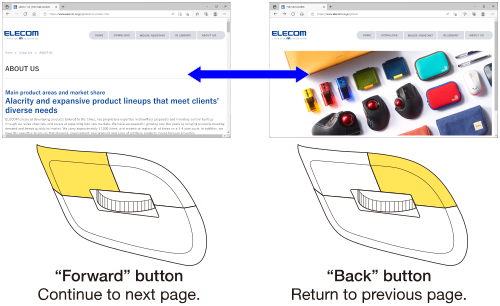
You need to install the “ELECOM Mouse Assistant 6” from our website to use the “Back” and “Forward” button on Mac. Refer to “Install ELECOM Mouse Assistant 6”.
⑥ Multi-function button 1
⑦ Multi-function button 2
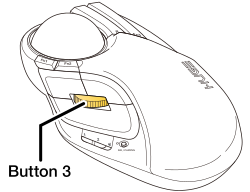
⑧ Multi-function button 3
Functions can be assigned to function buttons 1 to 3. At the time of purchase, no functions have been assigned.
In order to assign functions to the function buttons, download and install “ELECOM Mouse Assistant 6” from our company website. Refer to “Install ELECOM Mouse Assistant 6”.
⑨ LED light
⑩ DPI/Pairing button
DPI count (pointer movement speed) can be switched between 3 stages, Low/Mid/High, by pressing this button.
The DPI count is as follows.
Low: 500 DPI
Mid: 1000 DPI
High: 1500 DPI
Press and hold for 3 seconds during Bluetooth pairing to enter pairing mode.
⑪ Connection selection switch
Slide this to switch between devices connected to this product.
Please refer to “Switch connected device”.
⑫ Ball (diameter: 52 mm/2.05 in.)
Rotate using your fingertips to move the cursor.
⑬ Support parts (bearings)
Support the ball.
Support parts are consumables. Compatible support parts can be purchased separately to replace existing support parts.
Optional Parts
⑭ Optical sensor (under the ball)
This sensor detects the trackball’s movements when you move the trackball.
⑮ USB Type-C port
⑯ Ball removal hole
Push the ball out from here to clean the support parts in the housing.
*See "How to clean the trackball” for details.
⑰ Power mode selection switch
Turn ON or OFF the trackball and select the power mode (low-energy mode or high-speed mode).
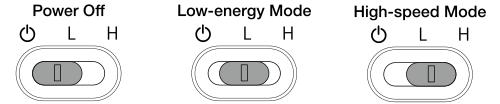
Low-energy mode reduces energy consumption.
In high-speed mode, tracking performance when moving the ball quickly is better, but more power is consumed.
High-speed-mode is permanently enabled when connected via USB cable.
⑱ Accessory storage compartment cover
Remove this cover to store the receiver unit or removal tool.
⑲ Receiver unit storage compartment
The receiver unit can be stored here when the trackball is connected via wire.
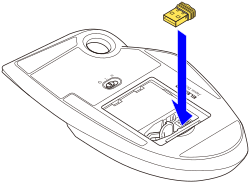
⑳ Removal tool storage compartment
The removal tool can be stored here.
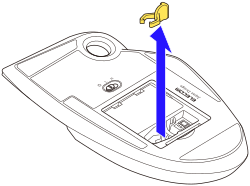
Receiver unit
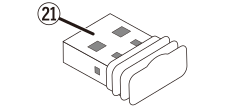
㉑ USB-A plug
Connects to the PC USB-A port.
Switch connected device
You can switch between the following connection destinations using the connection selection switch.
 )
) )
) )
)1) Switch between connections using the connection selection switch.
When switching to another connection destination, the LED will blink for 5 seconds in the color corresponding to the selected DPI count. (The default color is ●Blue.)

1.Charging the battery
1) Plug the USB Type-C plug of the included cable into the USB Type-C port on this product.
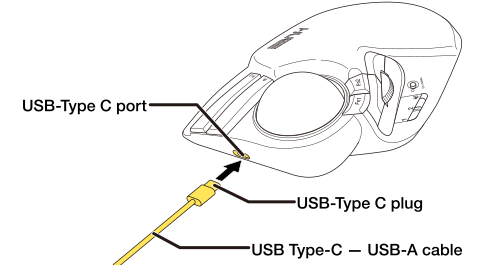
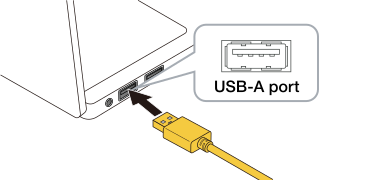
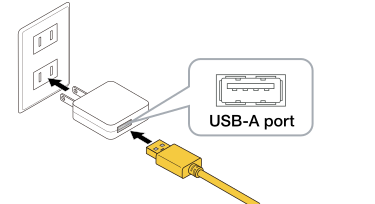
2) Insert the USB-A plug on the included charging cable into the USB-A port on your PC or a USB charging adapter.
Connecting to a PC
Connecting to a USB charging adapter
3) Turn on the PC, if it has not been already switched on.
When charging begins, the LED will blink slowly in the color corresponding to the selected DPI count. When charging is complete, the LED will turn off.
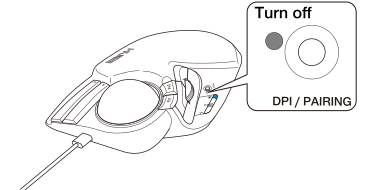
It takes about 6.5 hours to fully charge this product.
If the LED light does not turn off even after the prescribed charging time, remove the charging USB cable and stop charging for the moment. Otherwise, this can cause overheating, rupturing or fires.
2. Turn the power ON
1) Slide the power mode selection switch to either the H (high-speed mode) or L (low-energy mode) position.
The light will blink for 5 seconds in the color corresponding to the selected DPI count.
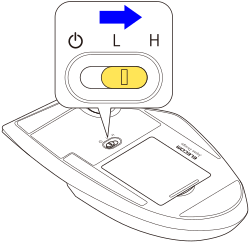
In high-speed mode, tracking performance becomes greater when moving the ball quickly, but battery life is shortened.
Trackball power saving mode
When the trackball is left untouched for a fixed period of time while the power is ON, it automatically shifts to power-saving mode.
Moving the trackball restores it from energy saving mode.
*For two to three seconds after restoring from energy saving mode, trackball operation may be unstable.
3. Pairing with a PC
When Using Swift Pair
This product supports Swift Pair. If you are using a PC or Bluetooth dongle that supports Swift Pair, setting this product to pairing mode allows it to quickly pair with the PC.
1) Switch to Bluetooth connection () using the connection selection switch.
Please refer to “Switch connected device” to switch between connected devices.
2) Hold down the DPI/PAIRING button for 3-4 seconds.
It will switch to pairing mode and the LED will blink slowly in the color corresponding to the selected DPI count. (The default color is ●Blue.)
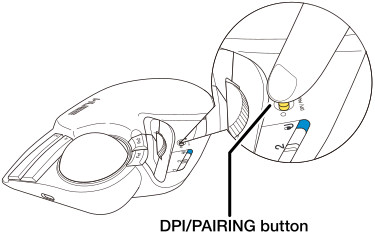
3) When the screen below appears in the lower-right corner, click “Connect”.
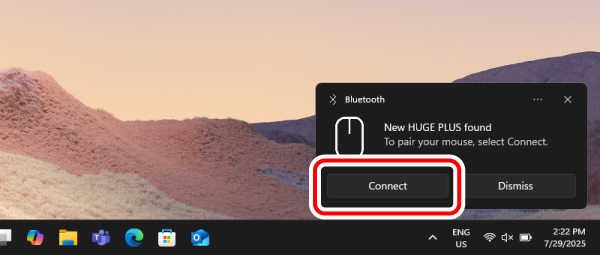
If the above screen does not appear, please check whether Swift Pair notifications are enabled. For more details, refer to “Turning On Swift Pair Notifications”.
4) When “HUGE PLUS connected” is displayed, pairing is complete.
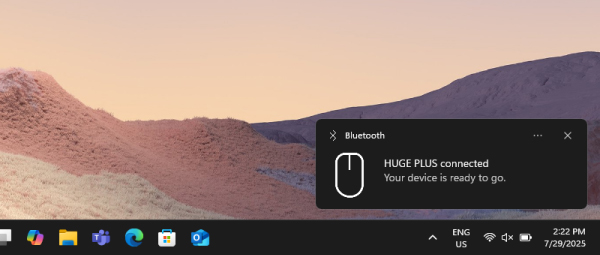
When pairing is complete, the LED will blink for 5 seconds in the color corresponding to the selected DPI count. (The default color is ●Blue.)
You can now use the trackball.
● Turning On Swift Pair Notifications
If Swift Pair does not work even after entering pairing mode, enable the Swift Pair notification by following the steps below.
1) Right click on “Start” on the bottom of the screen and then, select “Settings”.
The “Settings” page appears.
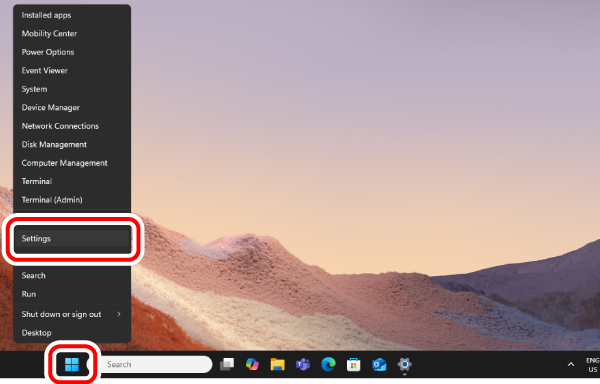
2) Click “Bluetooth & devices”, then click “View more devices”.
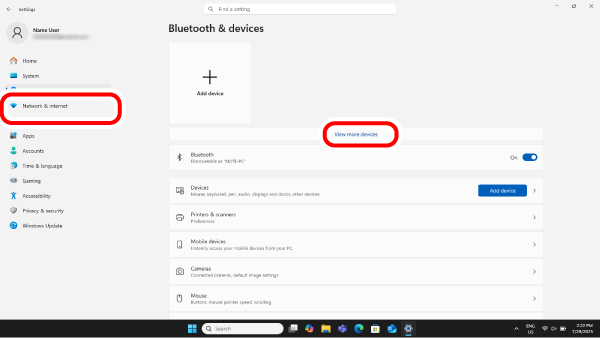
3) Click “Show notifications to connect using Swift Pair”, and turn it on.
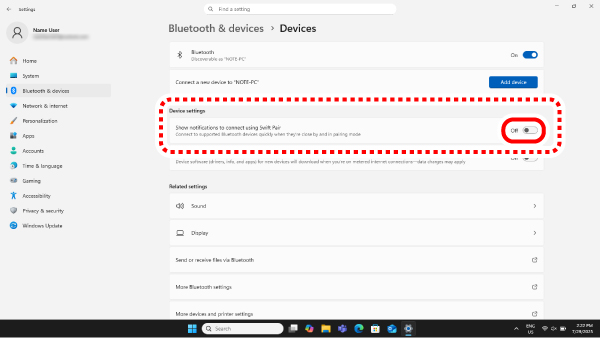
You are now able to use Swift Pair.
If “Show notifications to connect using Swift Pair” does not appear, your PC or Bluetooth dongle does not support Swift Pair. In that case, please pair the device from the settings screen. For details, refer to“▪ When Pairing from the Settings Screen”.
When Pairing from the Settings Screen
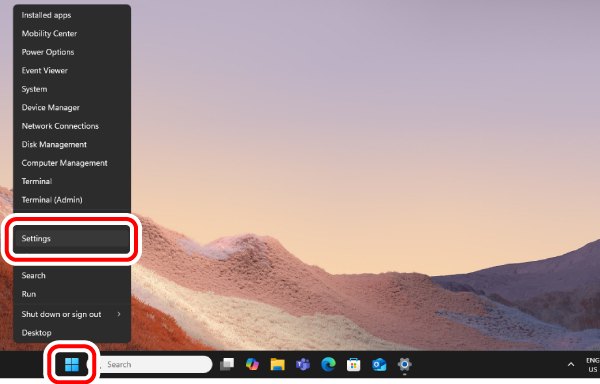
1) Right click on “Start” on the bottom of the screen and then, select “Settings”.
The “Settings” page appears.
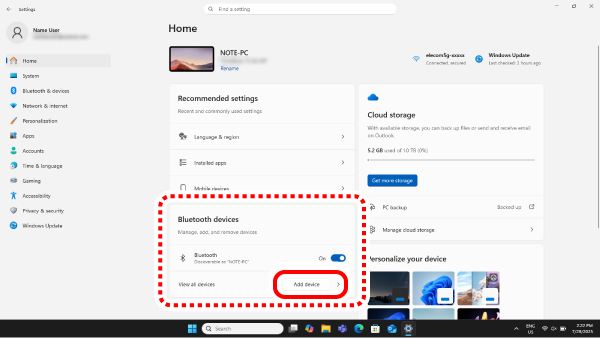
2) Under “Home”, select “Add device” under “Bluetooth devices”.
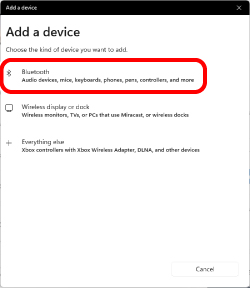
The “Add a device” page appears.
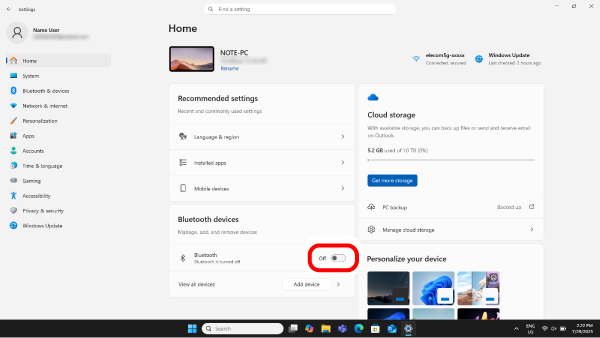
If “Bluetooth” is off, turn it on.
3) Switch to Bluetooth connection () using the connection selection switch.
Please refer to “Switch connected device” to switch between connected devices.
4) Click “Bluetooth”.
5) When the add device screen is displayed, hold down the DPI/PAIRING button for 3-4 seconds.
It will switch to pairing mode and the LED will blink slowly in the color corresponding to the selected DPI count. (The default color is ●Blue.)
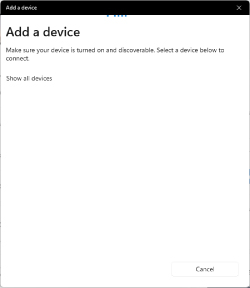
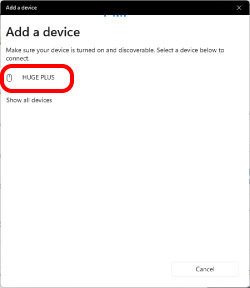
6) Click “HUGE PLUS”.
Pairing begins.
7) When the message changes to “Your device is ready to go!”, select “Done”.
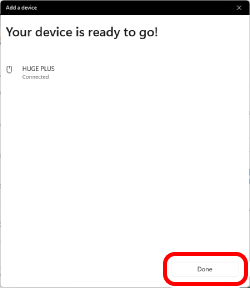
When pairing is complete, the LED will blink for 5 seconds in the color corresponding to the selected DPI count. (The default color is ●Blue.)
8) Pairing is complete when this product is added to “Bluetooth devices” and the status is “Connected”.
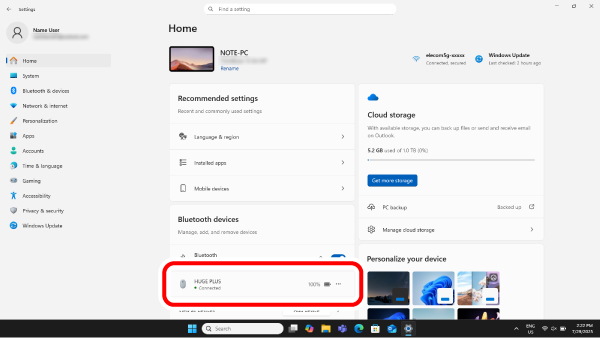
You can now use the trackball.
1.Charging the battery
1) Plug the USB Type-C plug of the included cable into the USB Type-C port on this product.
2) Insert the USB-A plug on the included charging cable into the USB-A port on your PC or a USB charging adapter.
Connecting to a PC
Connecting to a USB charging adapter
3) Turn on the PC, if it has not been already switched on.
When charging begins, the LED will blink slowly in the color corresponding to the selected DPI count. When charging is complete, the LED will turn off.
It takes about 6.5 hours to fully charge this product.
If the LED light does not turn off even after the prescribed charging time, remove the charging USB cable and stop charging for the moment. Otherwise, this can cause overheating, rupturing or fires.
2.Remove the receiver unit.
1) Remove the accessory storage compartment cover.
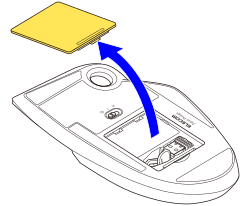
2) Remove the receiver unit.
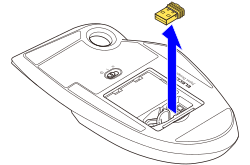
3) Put the accessory storage compartment cover back on.
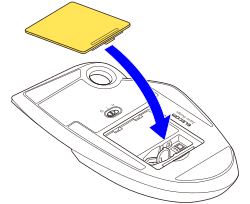
3. Turn the power ON
1) Slide the power mode selection switch to either the H (high-speed mode) or L (low-energy mode) position.
The light will blink for 5 seconds in the color corresponding to the selected DPI count.
In high-speed mode, tracking performance becomes greater when moving the ball quickly, but battery life is shortened.
Trackball power saving mode
When the trackball is left untouched for a fixed period of time while the power is ON, it automatically shifts to power-saving mode.
Moving the trackball restores it from energy saving mode.
*For two to three seconds after restoring from energy saving mode, trackball operation may be unstable.
4. Connect to a PC
1) Start up your PC.
Please wait until the PC has started up and can be operated.
2) Insert the receiver unit into the PC’s USB-A port.
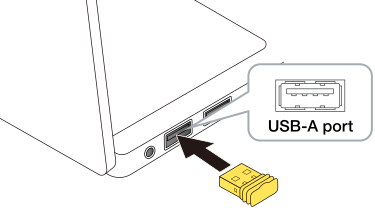
You may use any USB-A port.
3) Switch to USB 2.4 GHZ wireless connection () using the connection selection switch.
Please refer to “Switch connected device” to switch between connected devices.
When removing the receiver
This product supports hot plugging. You can remove the receiver even when the PC is running.
4) The driver is automatically installed and the trackball can be used.
The LED will blink for 5 seconds in the color corresponding to the selected DPI count. (The default color is ●Blue.)
You can now use the trackball.
Connecting to a PC
1) Plug the Type-C connector of the included USB Type-C — USB-A cable to the USB Type-C port of this product.
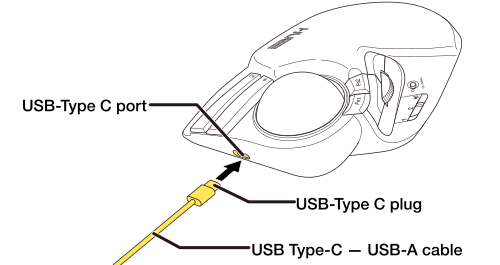
2) Start up your PC.
Please wait until the PC has started up and can be operated.
3) Plug the USB-A connector of the USB Type-C — USB-A cable into the USB-A port of the PC.
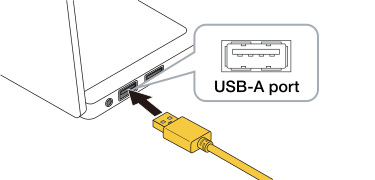
You may use any USB-A port.
4) Switch to USB wired connection () using the connection selection switch.
Please refer to “Switch connected device” to switch between connected devices.
To remove the trackball
This product supports hot plugging. The trackball may be removed while your PC is in operation.
5) The driver is automatically installed and the trackball can be used.
The LED will blink for 5 seconds in the color corresponding to the selected DPI count. (The default color is ●Blue.)
You can now use the trackball.
By downloading and installing the “ELECOM Mouse Assistant 6” from our company website, settings such function assignment, keyboard shortcuts, gesture functions, and changes to profiles can be performed. Please proceed to “Install ELECOM Mouse Assistant 6”.
Change the mouse pointer speed
Adjust the mouse pointer movement speed on your PC if the mouse pointer moves too fast or too slow.
■ For Windows 11
1) Click on “Start” on the bottom of the screen and select “Settings”.
The “Settings” page appears.
2) Select “Bluetooth & devices” and then “Mouse”.
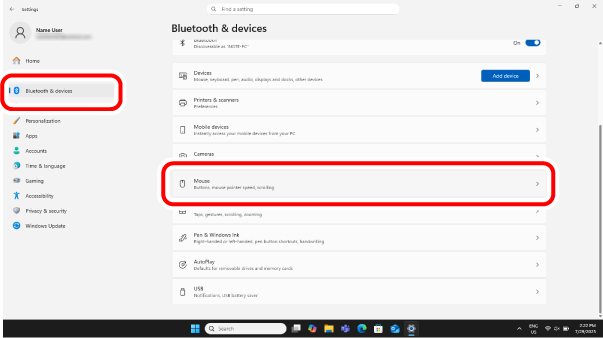
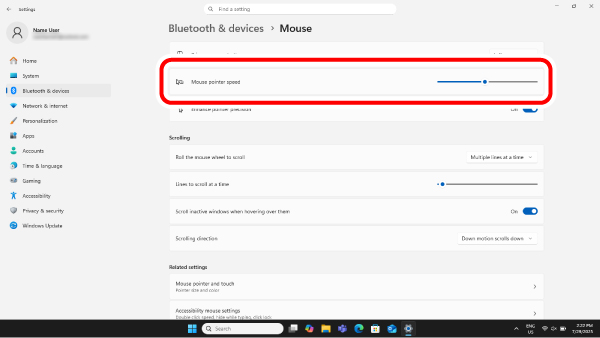
3) Adjust the “Mouse pointer speed” slider bar to adjust the mouse pointer movement speed.
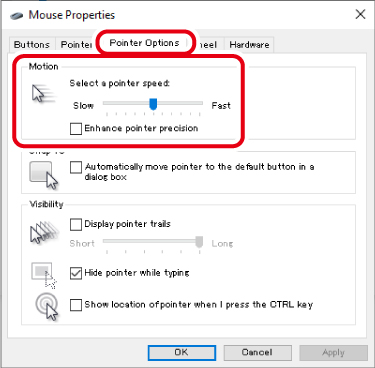
■ For Windows 10
1) Open “Mouse” properties.
From the start menu, select the Settings icon, select “Devices” → “Mouse”, then select “Additional mouse options” under “Related Settings”.
2) Select the “Pointer Options” tab.
3) Adjust the “Select a pointer speed” slider bar to adjust the mouse pointer movement speed.
Change the number of lines scrolled in one wheel turn
■ For Windows 11
1) Click on “Start” on the bottom of the screen and select “Settings”.
The “Settings” page appears.
2) Select “Bluetooth & devices” and then “Mouse”.
3) Adjust the “Lines to scroll at a time” slider bar to adjust the number of lines per scroll.

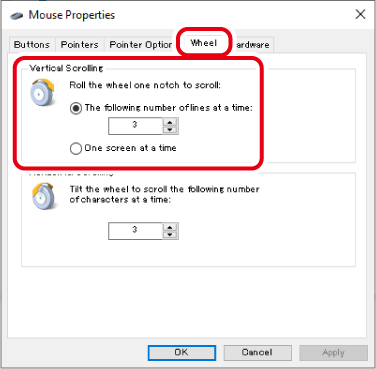
■ For Windows 10
1) Open “Mouse” properties.
From the start menu, select the Settings icon, select “Devices” → “Mouse”, then select “Additional mouse options” under “Related Settings”.
2) Select the “Wheel” tab.
3) Change the value of “The following number of lines at a time” under “Roll the wheel one notch to scroll”
Change scroll direction
Change the scroll direction for when the tilt wheel on the mouse is moved.
■ For Windows 11
1) Click on “Start” on the bottom of the screen and select “Settings”.
The “Settings” page appears.
2) Select “Bluetooth & devices” and then “Mouse”.
3) Click “Scrolling direction” to change the scroll direction.
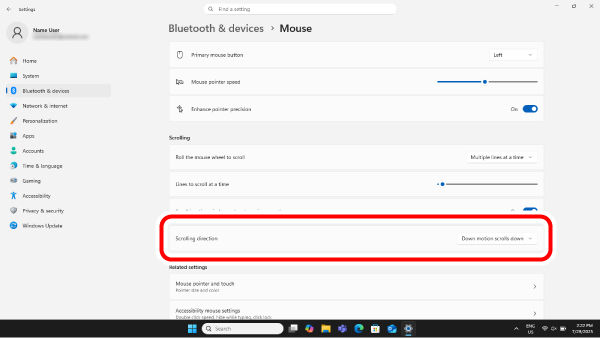
Select “Down motion scrolls up” to reverse the scroll direction when the tilt wheel is moved.
1.Charging the battery
1) Plug the USB Type-C plug of the included cable into the USB Type-C port on this product.
2) Insert the USB-A plug on the included charging cable into the USB-A port on your PC or a USB charging adapter.
Connecting to a PC
Connecting to a USB charging adapter
3) Turn on the PC, if it has not been already switched on.
When charging begins, the LED will blink slowly in the color corresponding to the selected DPI count. When charging is complete, the LED will turn off.
It takes about 6.5 hours to fully charge this product.
If the LED light does not turn off even after the prescribed charging time, remove the charging USB cable and stop charging for the moment. Otherwise, this can cause overheating, rupturing or fires.
2. Turn the power ON
1) Slide the power mode selection switch to either the H (high-speed mode) or L (low-energy mode) position.
The light will blink for 5 seconds in the color corresponding to the selected DPI count.
In high-speed mode, tracking performance becomes greater when moving the ball quickly, but battery life is shortened.
Trackball power saving mode
When the trackball is left untouched for a fixed period of time while the power is ON, it automatically shifts to power-saving mode.
Moving the trackball restores it from energy saving mode.
*For two to three seconds after restoring from energy saving mode, trackball operation may be unstable.
3. Pairing with a PC
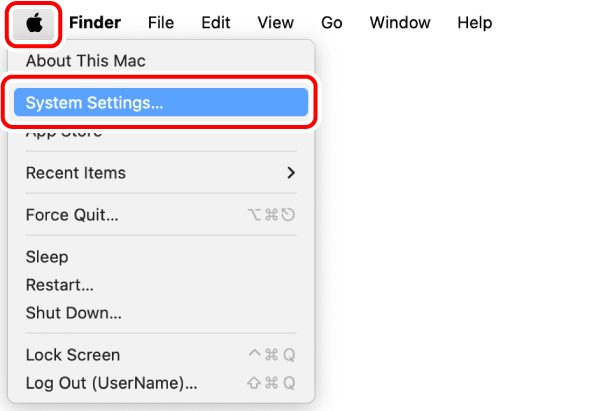
1) From the Apple menu, select “System Settings...”
The System Settings window will appear.
2) Click on “Bluetooth” to turn on “Bluetooth”.
The “Bluetooth” system settings page will appear.
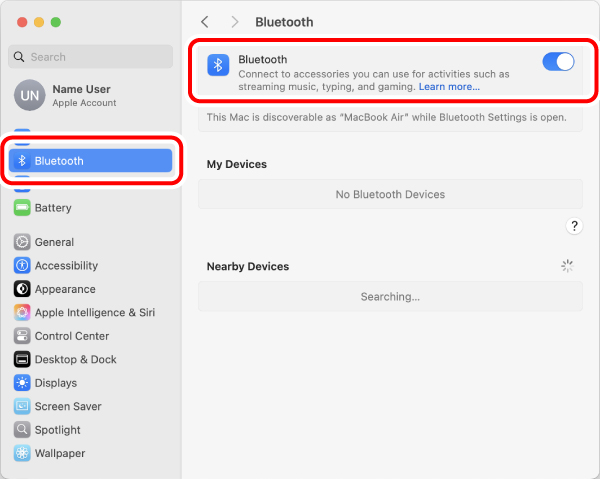
3) Switch to Bluetooth connection () using the connection selection switch.
Please refer to “Switch connected device” to switch between connected devices.
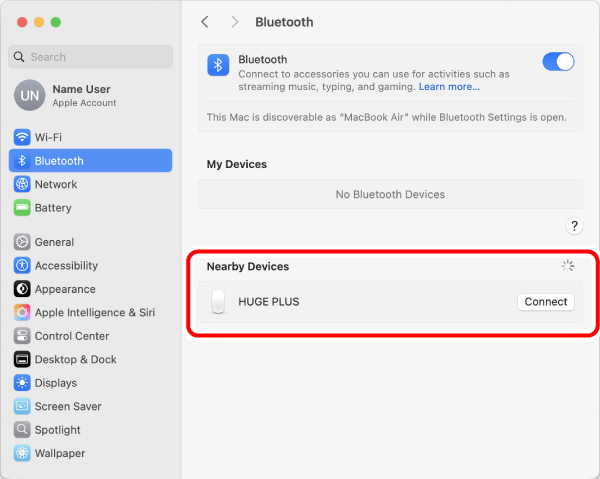
4) During device search, hold down the DPI/PAIRING button for 3-4 seconds.
It will switch to pairing mode and the LED will blink slowly in the color corresponding to the selected DPI count. (The default color is ●Blue.)
5) When “HUGE PLUS” is detected under “Nearby Devices”, select “Connect”.
Pairing begins.
6) Pairing is complete when the status of “HUGE PLUS” changes to “Connected”.
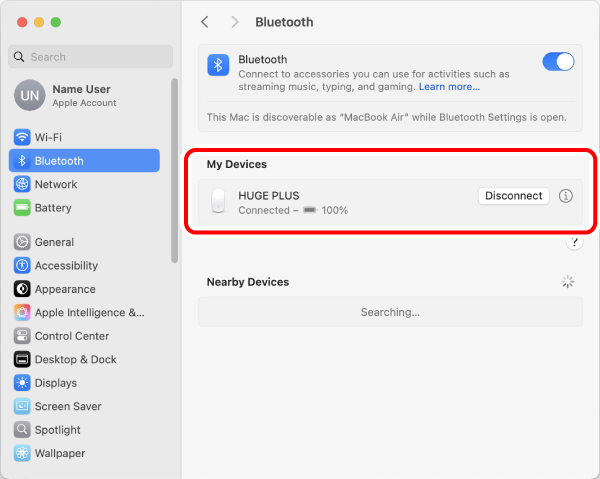
When pairing is complete, the LED will blink for 5 seconds in the color corresponding to the selected DPI count. (The default color is ●Blue.)
You can now use the trackball.
1.Charging the battery
1) Plug the USB Type-C plug of the included cable into the USB Type-C port on this product.
2) Insert the USB-A plug on the included charging cable into the USB-A port on your PC or a USB charging adapter.
Connecting to a PC
Connecting to a USB charging adapter
3) Turn on the PC, if it has not been already switched on.
When charging begins, the LED will blink slowly in the color corresponding to the selected DPI count. When charging is complete, the LED will turn off.
It takes about 6.5 hours to fully charge this product.
If the LED light does not turn off even after the prescribed charging time, remove the charging USB cable and stop charging for the moment. Otherwise, this can cause overheating, rupturing or fires.
2.Remove the receiver unit.
1) Remove the accessory storage compartment cover.
2) Remove the receiver unit.
3) Put the accessory storage compartment cover back on.
3. Turn the power ON
1) Slide the power mode selection switch to either the H (high-speed mode) or L (low-energy mode) position.
The light will blink for 5 seconds in the color corresponding to the selected DPI count.
In high-speed mode, tracking performance becomes greater when moving the ball quickly, but battery life is shortened.
Trackball power saving mode
When the trackball is left untouched for a fixed period of time while the power is ON, it automatically shifts to power-saving mode.
Moving the trackball restores it from energy saving mode.
*For two to three seconds after restoring from energy saving mode, trackball operation may be unstable.
4. Connect to a PC
1) Start up your PC.
Please wait until the PC has started up and can be operated.
2) Insert the receiver into the PC’s USB-A port.
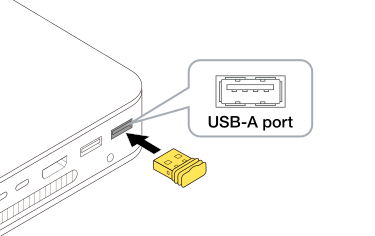
You may use any USB-A port.
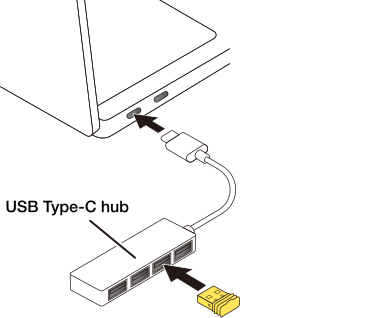
3) Switch to USB 2.4 GHZ wireless connection () using the connection selection switch.
Please refer to “Switch connected device” to switch between connected devices.
When removing the receiver
This product supports hot plugging. You can remove the receiver even when the PC is running.
4) The driver is automatically installed and the trackball can be used.
The LED will blink for 5 seconds in the color corresponding to the selected DPI count. (The default color is ●Blue.)
You can now use the trackball.
Connecting to a PC
1) Plug the Type-C connector of the included USB Type-C — USB-A cable to the USB Type-C port of this product.
2) Start up your PC.
Please wait until the PC has started up and can be operated.
3) Plug the USB-A connector of the USB Type-C — USB-A cable into the USB-A port of the PC.
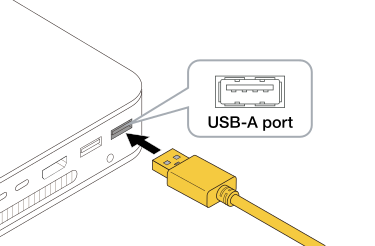
You may use any USB-A port.
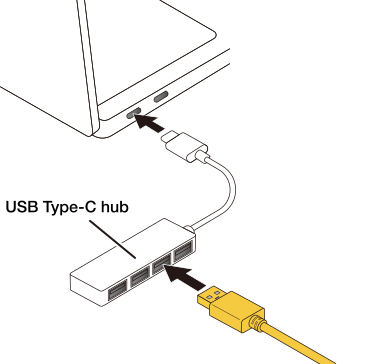
4) Switch to USB wired connection () using the connection selection switch.
Please refer to “Switch connected device” to switch between connected devices.
To remove the trackball
This product supports hot plugging. The trackball may be removed while your PC is in operation.
5) The driver is automatically installed and the trackball can be used.
The LED will blink for 5 seconds in the color corresponding to the selected DPI count. (The default color is ●Blue.)
You can now use the trackball.
By downloading and installing the "ELECOM Mouse Assistant 6” from our company website, settings such function assignment, keyboard shortcuts, gesture functions, and changes to profiles can be performed. Please proceed to “Install ELECOM Mouse Assistant 6”.
Change the mouse pointer speed
Adjust the mouse pointer movement speed on your PC if the mouse pointer moves too fast or too slow.
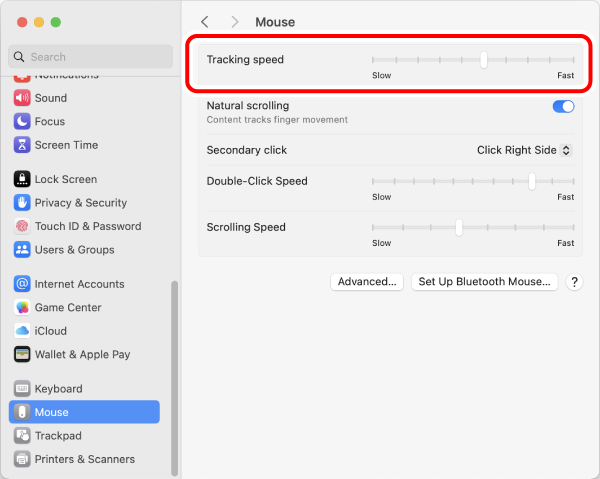
1) Select “Mouse” under “System Settings”.
The “Mouse” settings page loads.
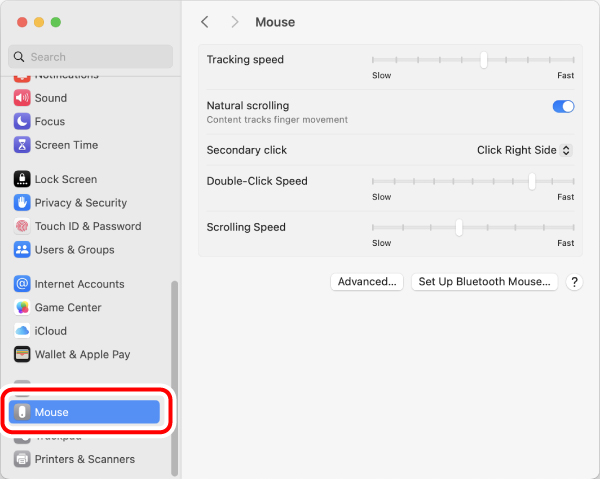
2) Adjust the “Tracking speed” slider to adjust the speed of the mouse pointer.
Change scroll direction
Change the scroll direction for when the tilt wheel on the mouse is moved.
1) Select “Mouse” under “System Settings”.
The “Mouse” settings page loads.
2) Clicking “Natural scrolling” to turn it on or off changes the scroll direction.
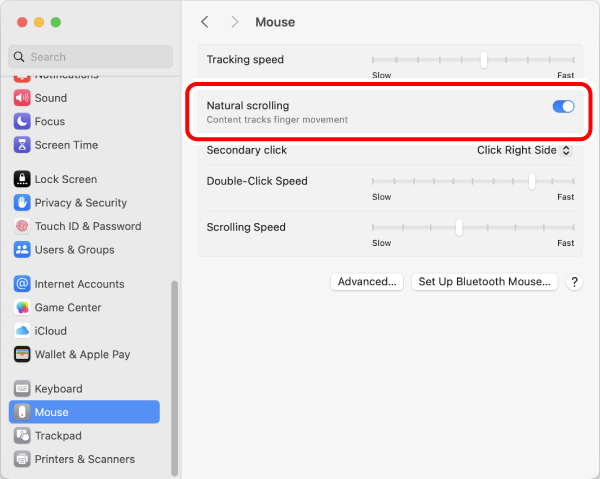
When “Natural scrolling” is turned off, the scroll direction is the same as the direction of the tilt wheel movement.
1.Charging the battery
1) Plug the USB Type-C plug of the included cable into the USB Type-C port on this product.
2) Insert the USB-A plug on the included charging cable into the USB-A port on your PC or a USB charging adapter.
Connecting to a PC
Connecting to a USB charging adapter
3) Turn on the PC, if it has not been already switched on.
When charging begins, the LED will blink slowly in the color corresponding to the selected DPI count. When charging is complete, the LED will turn off.
It takes about 6.5 hours to fully charge this product.
If the LED light does not turn off even after the prescribed charging time, remove the charging USB cable and stop charging for the moment. Otherwise, this can cause overheating, rupturing or fires.
2. Turn the power ON
1) Slide the power mode selection switch to either the H (high-speed mode) or L (low-energy mode) position.
The light will blink for 5 seconds in the color corresponding to the selected DPI count.
In high-speed mode, tracking performance becomes greater when moving the ball quickly, but battery life is shortened.
Trackball power saving mode
When the trackball is left untouched for a fixed period of time while the power is ON, it automatically shifts to power-saving mode.
Moving the trackball restores it from energy saving mode.
*For two to three seconds after restoring from energy saving mode, trackball operation may be unstable.
3. Pairing with an iPad or an iPhone
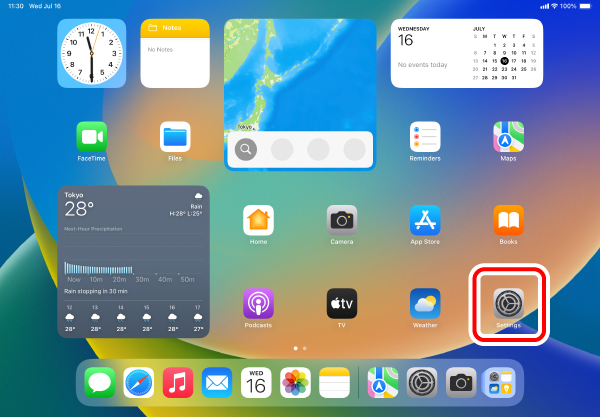
1) Select “Settings” from the home page.
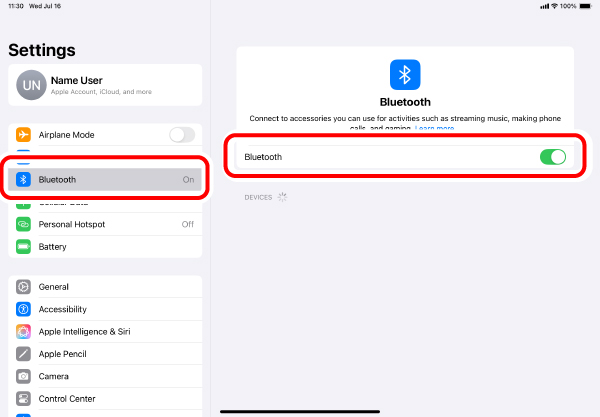
2) Select “Bluetooth” to turn on the “Bluetooth”.
3) Switch to Bluetooth connection () using the connection selection switch.
Please refer to “Switch connected device” to switch between connected devices.
4) During the device search, hold down the pairing button on the bottom for 3-4 seconds.
It will switch to pairing mode and the LED will blink slowly in the color corresponding to the selected DPI count. (The default color is ●Blue.)
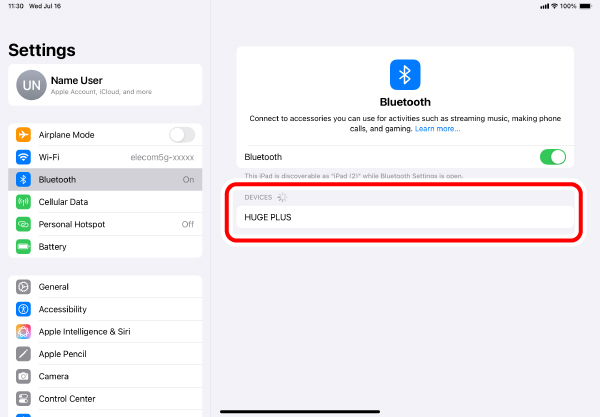
5) Tap on “HUGE PLUS” when it is detected under “DEVICES”.
Pairing begins.
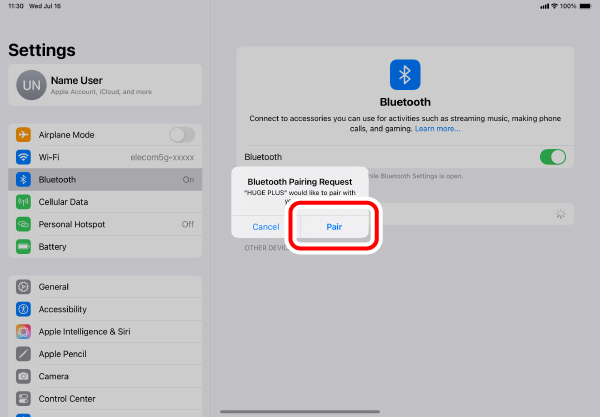
6) When the “Bluetooth Pairing Request” page loads, tap on “Pair”.
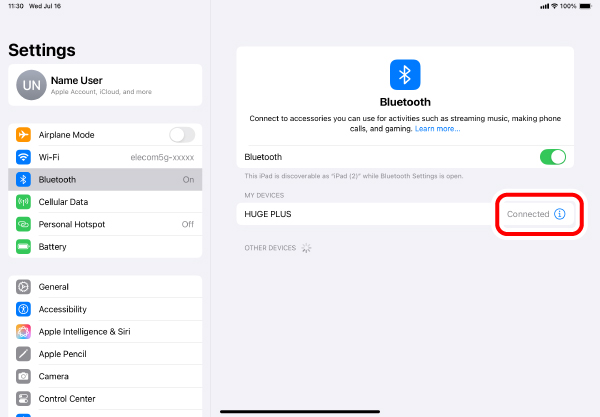
7) You can use the trackball when the status shows "Connected”.
When pairing is complete, the LED will blink for 5 seconds in the color corresponding to the selected DPI count. (The default color is ●Blue.)
You can now use the trackball.
Register custom actions to the buttons.
Only the 2 buttons and the wheel can be used under the initial settings.
Follow the steps below to assign all other button functions.
1. Turn ON AssistiveTouch.
1) Select “Accessibility” under “Settings”.
2) Select “Touch”.
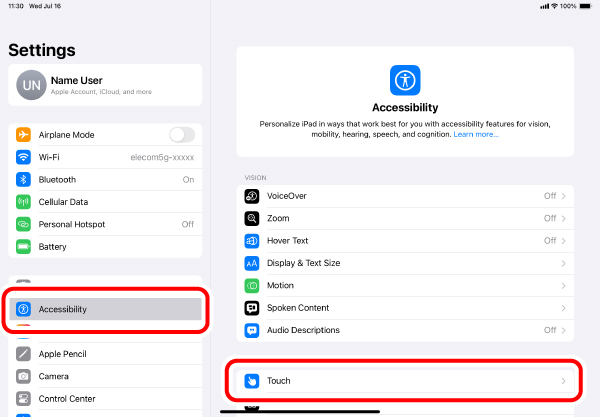
3) Select “AssistiveTouch”.
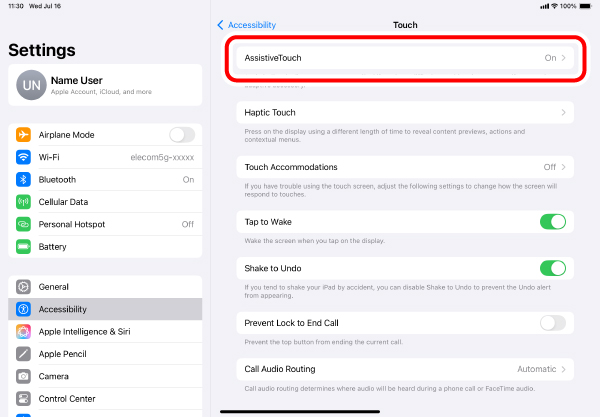
4) Select “AssistiveTouch” to turn ON.
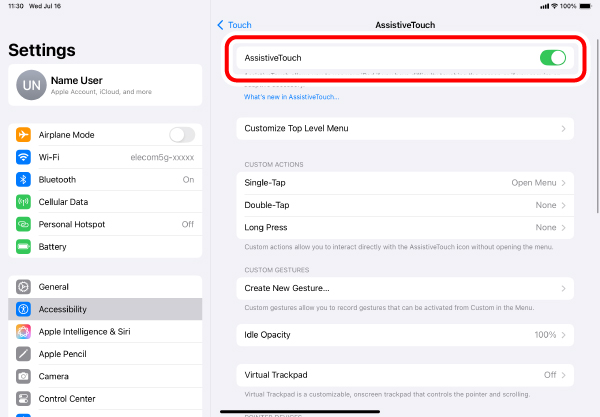
2. Assign custom actions to the buttons.
1) Select “Devices” under “POINTER DEVICES”.
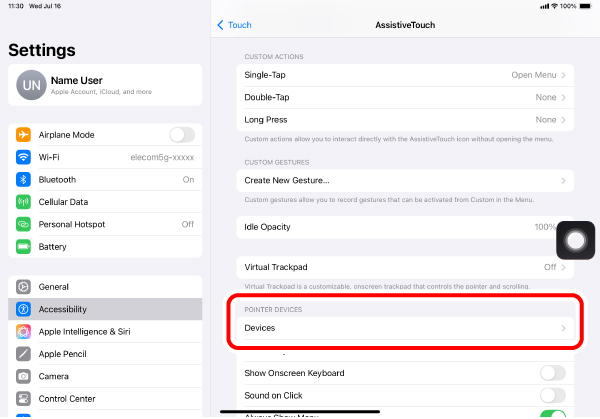
2) Select “HUGE PLUS”.
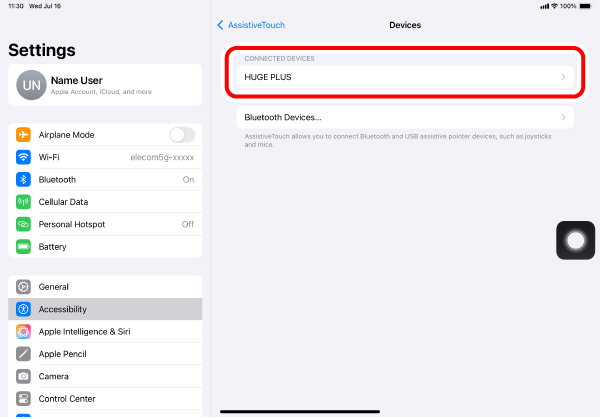
3) Select “Customize Additional Buttons...”.
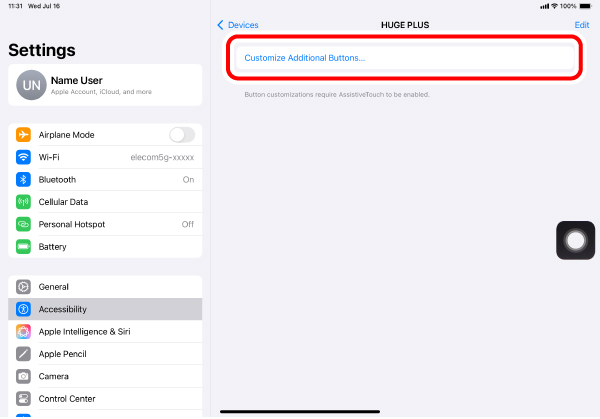
4) When the “Customize Button” page loads, click on the button on the trackball to be added.
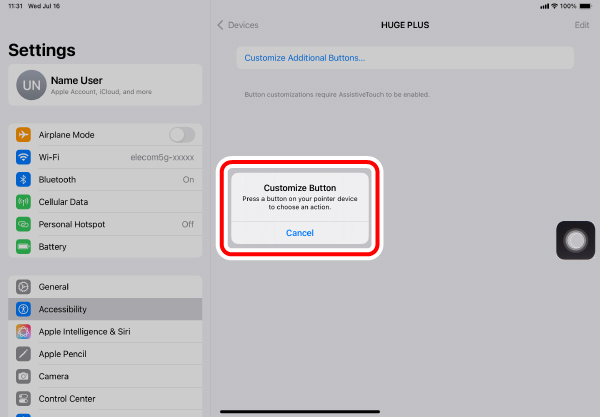
*When adding “Button 3”.
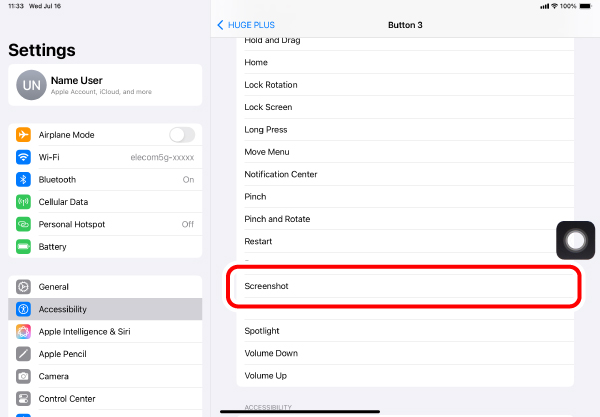
5) A list of all assignable functions loads. Select the desired function to assign.
*When assigning “Screenshot” to “Button 3”.
6) The function has been assigned to the button. To assign a function to another button, repeat the steps above.
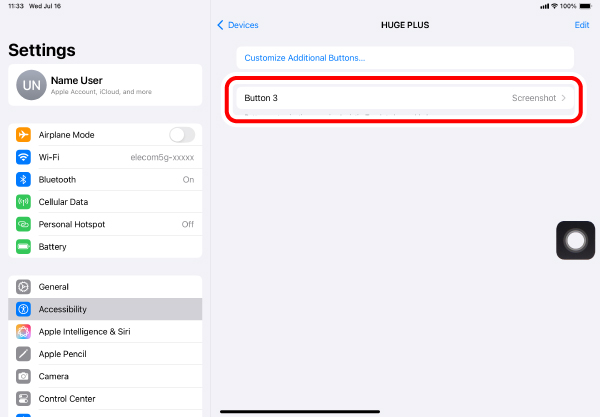
When AssistiveTouch is OFF, the Custom Action function is disabled and only the initial right click, left click and wheel scroll functions may be used.
Change scroll direction
Change the scroll direction for when the tilt wheel on the mouse is moved.
1) Select “General” under “Settings” from the home page.
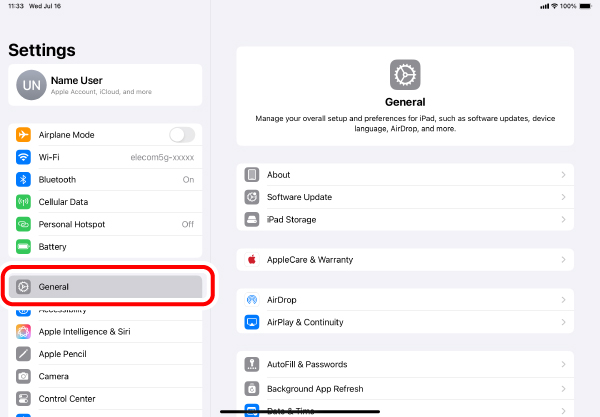
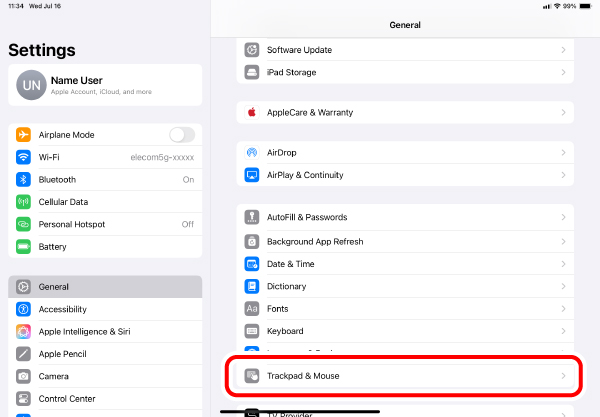
2) Tap on “Trackpad & Mouse”.
3) Tapping “Natural Scrolling” to turn it on or off will change the scroll direction.
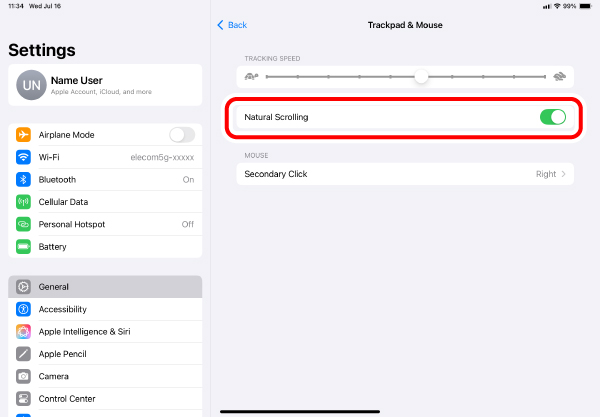
When “Natural Scrolling” is turned off, the scroll direction is the same as the direction of the tilt wheel movement.
1.Charging the battery
1) Plug the USB Type-C plug of the included cable into the USB Type-C port on this product.
2) Insert the USB-A plug on the included charging cable into the USB-A port on your PC or a USB charging adapter.
Connecting to a PC
Connecting to a USB charging adapter
3) Turn on the PC, if it has not been already switched on.
When charging begins, the LED will blink slowly in the color corresponding to the selected DPI count. When charging is complete, the LED will turn off.
It takes about 6.5 hours to fully charge this product.
If the LED light does not turn off even after the prescribed charging time, remove the charging USB cable and stop charging for the moment. Otherwise, this can cause overheating, rupturing or fires.
2. Turn the power ON
1) Slide the power mode selection switch to either the H (high-speed mode) or L (low-energy mode) position.
The light will blink for 5 seconds in the color corresponding to the selected DPI count.
In high-speed mode, tracking performance becomes greater when moving the ball quickly, but battery life is shortened.
Trackball power saving mode
When the trackball is left untouched for a fixed period of time while the power is ON, it automatically shifts to power-saving mode.
Moving the trackball restores it from energy saving mode.
*For two to three seconds after restoring from energy saving mode, trackball operation may be unstable.
3. Pairing with an Android device.
1) Select “Settings” from the home page.
2) Select “Connected devices”.
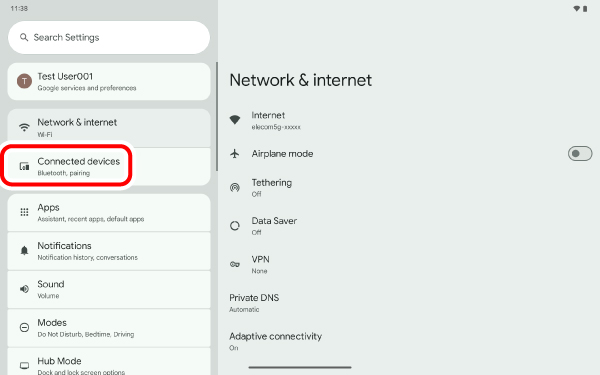
3) Select “Pair new device”.
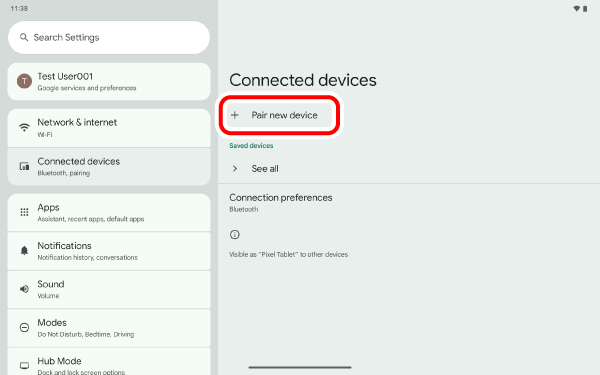
4) Switch to Bluetooth connection () using the connection selection switch.
Please refer to “Switch connected device” to switch between connected devices.
5) Hold down the DPI/PAIRING button for 3-4 seconds.
It will switch to pairing mode and the LED will blink slowly in the color corresponding to the selected DPI count. (The default color is ●Blue.)
6) Select “HUGE PLUS” under “Available devices”.
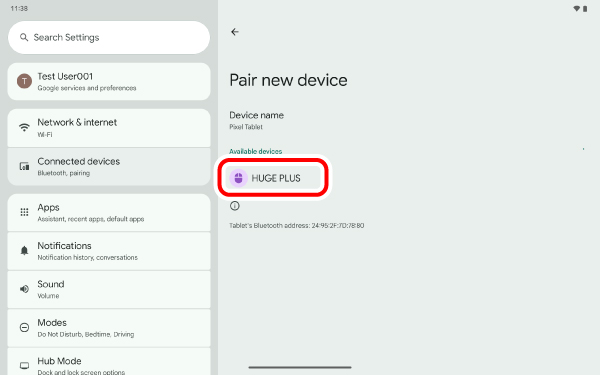
7) Select “Pair”.
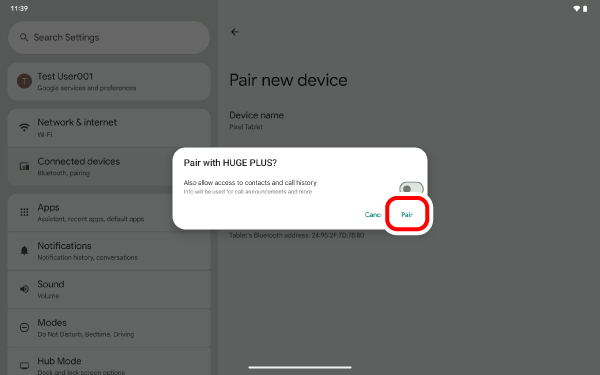
Pairing begins.
8) Pairing is complete when this product is added to “Other devices”.
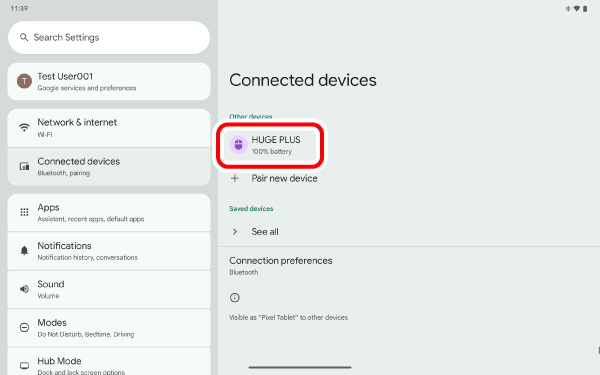
When pairing is complete, the LED will blink for 5 seconds in the color corresponding to the selected DPI count. (The default color is ●Blue.)
You can now use the trackball.
1.Charging the battery
1) Plug the USB Type-C plug of the included cable into the USB Type-C port on this product.
2) Insert the USB-A plug on the included charging cable into the USB-A port on your PC or a USB charging adapter.
Connecting to a PC
Connecting to a USB charging adapter
3) Turn on the PC, if it has not been already switched on.
When charging begins, the LED will blink slowly in the color corresponding to the selected DPI count. When charging is complete, the LED will turn off.
It takes about 6.5 hours to fully charge this product.
If the LED light does not turn off even after the prescribed charging time, remove the charging USB cable and stop charging for the moment. Otherwise, this can cause overheating, rupturing or fires.
2. Turn the power ON
1) Slide the power mode selection switch to either the H (high-speed mode) or L (low-energy mode) position.
The light will blink for 5 seconds in the color corresponding to the selected DPI count.
In high-speed mode, tracking performance becomes greater when moving the ball quickly, but battery life is shortened.
Trackball power saving mode
When the trackball is left untouched for a fixed period of time while the power is ON, it automatically shifts to power-saving mode.
Moving the trackball restores it from energy saving mode.
*For two to three seconds after restoring from energy saving mode, trackball operation may be unstable.
3. Pairing with a PC
1) Select the battery icon at the bottom right.
2) Click Bluetooth on the Quick Settings panel.
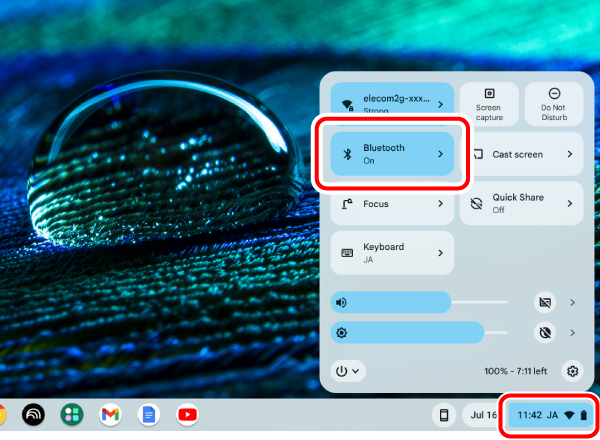
3) Under “Bluetooth”, select “Pair new device”.
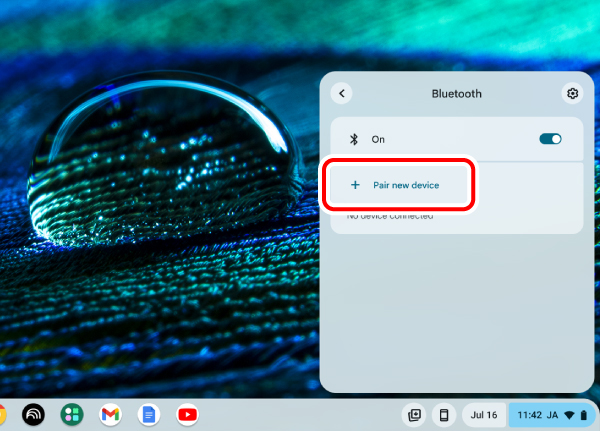
4) Switch to Bluetooth connection () using the connection selection switch.
Please refer to “Switch connected device” to switch between connected devices.
5) During device scanning, hold down the DPI/PAIRING button for 3-4 seconds.
It will switch to pairing mode and the LED will blink slowly in the color corresponding to the selected DPI count. (The default color is ●Blue.)
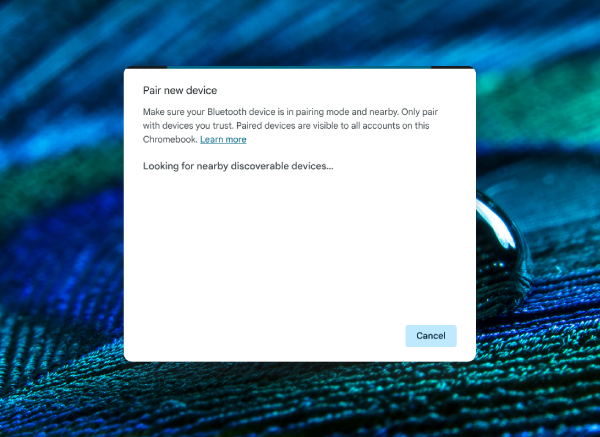
6) Click “HUGE PLUS”.
Pairing begins.
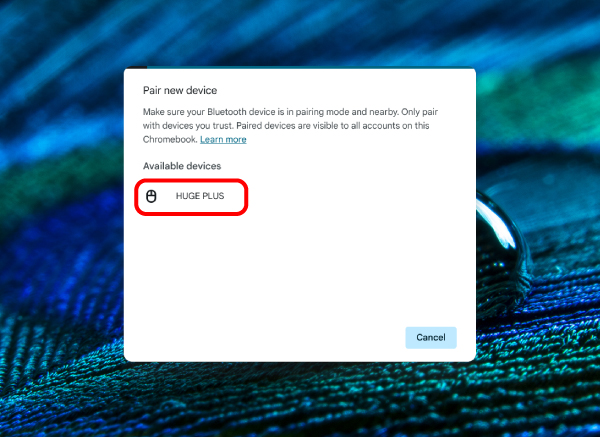
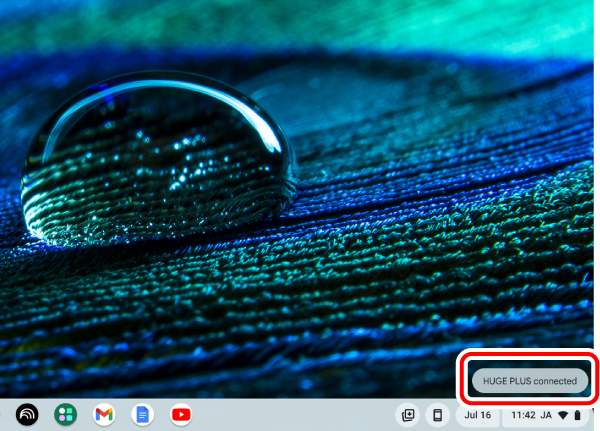
7) “HUGE PLUS connected” will be displayed at the bottom of the screen.
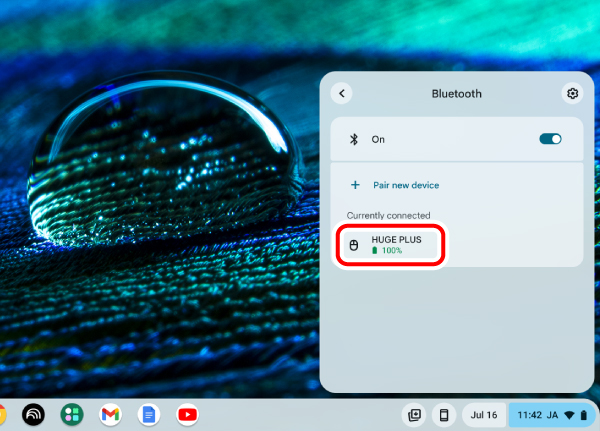
Select “Bluetooth” like in step 2. Pairing is complete when “HUGE PLUS” appears under “Currently connected”.
When pairing is complete, the LED will blink for 5 seconds in the color corresponding to the selected DPI count. (The default color is ●Blue.)
You can now use the trackball.
1.Charging the battery
1) Plug the USB Type-C plug of the included cable into the USB Type-C port on this product.
2) Insert the USB-A plug on the included charging cable into the USB-A port on your PC or a USB charging adapter.
Connecting to a PC
Connecting to a USB charging adapter
3) Turn on the PC, if it has not been already switched on.
When charging begins, the LED will blink slowly in the color corresponding to the selected DPI count. When charging is complete, the LED will turn off.
It takes about 6.5 hours to fully charge this product.
If the LED light does not turn off even after the prescribed charging time, remove the charging USB cable and stop charging for the moment. Otherwise, this can cause overheating, rupturing or fires.
2.Remove the receiver unit.
1) Remove the accessory storage compartment cover.
2) Remove the receiver unit.
3) Put the accessory storage compartment cover back on.
3. Turn the power ON
1) Slide the power mode selection switch to either the H (high-speed mode) or L (low-energy mode) position.
The light will blink for 5 seconds in the color corresponding to the selected DPI count.
In high-speed mode, tracking performance becomes greater when moving the ball quickly, but battery life is shortened.
Trackball power saving mode
When the trackball is left untouched for a fixed period of time while the power is ON, it automatically shifts to power-saving mode.
Moving the trackball restores it from energy saving mode.
*For two to three seconds after restoring from energy saving mode, trackball operation may be unstable.
4. Connect to a PC
1) Start up your PC.
Please wait until the PC has started up and can be operated.
2) Insert the receiver unit into the PC’s USB-A port.
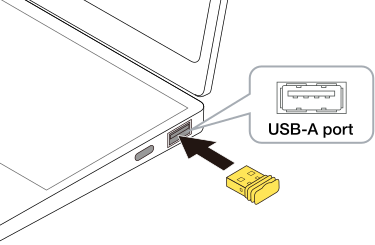
You may use any USB-A port.
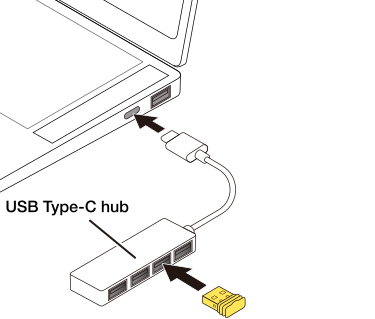
3) Switch to USB 2.4 GHZ wireless connection () using the connection selection switch.
Please refer to “Switch connected device” to switch between connected devices.
When removing the receiver
This product supports hot plugging. You can remove the receiver even when the PC is running.
4) The driver is automatically installed and the trackball can be used.
The LED will blink for 5 seconds in the color corresponding to the selected DPI count. (The default color is ●Blue.)
You can now use the trackball.
Connecting to a PC
1) Plug the Type-C connector of the included USB Type-C — USB-A cable to the USB Type-C port of this product.
2) Start up your PC.
Please wait until the PC has started up and can be operated.
3) Plug the USB-A connector of the USB Type-C — USB-A cable into the USB-A port of the PC.
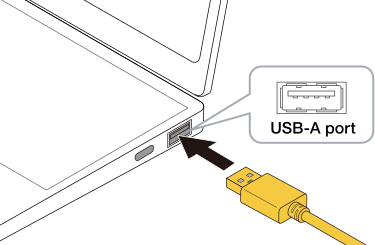
You may use any USB-A port.
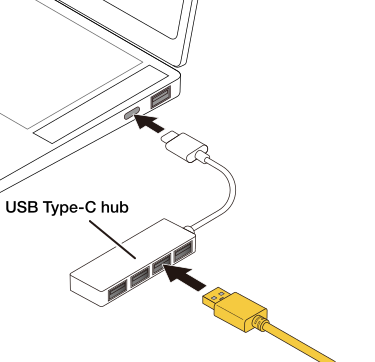
4) Switch to USB wired connection () using the connection selection switch.
Please refer to “Switch connected device” to switch between connected devices.
To remove the trackball
This product supports hot plugging. The trackball may be removed while your PC is in operation.
5) The driver is automatically installed and the trackball can be used.
The LED will blink for 5 seconds in the color corresponding to the selected DPI count. (The default color is ●Blue.)
You can now use the trackball.
Change the mouse pointer speed
Adjust the mouse pointer movement speed on your PC if the mouse pointer moves too fast or too slow.
1) Select the battery icon at the bottom right.
2) Select  (settings) on the Quick Settings panel.
The settings page appears.
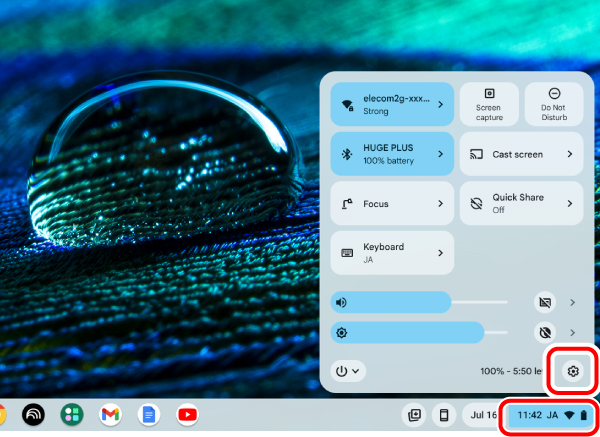
3) Select “Mouse” under “Device”.
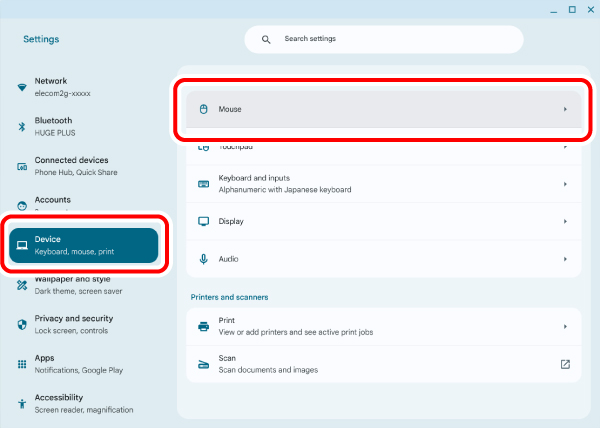
4) Adjust the speed of the mouse pointer using the “Cursor speed” slider on this product.
The display name of this product changes depending on the device to its connection.
Change the number of lines scrolled in one wheel turn
1) Select the battery icon at the bottom right.
2) Select (settings) on the Quick Settings panel.
The settings page appears.
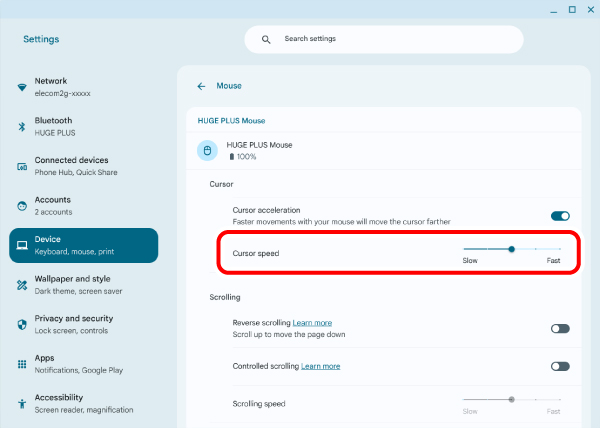
3) Select “Mouse” under “Device”.
4) If “Controlled scrolling” for this product is disabled, click to enable it.
The display name of this product changes depending on the device to its connection.
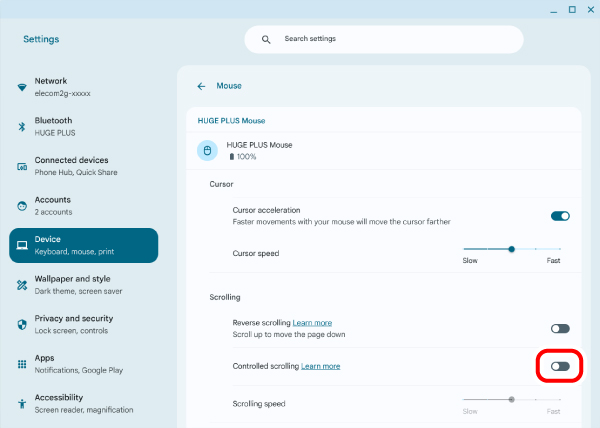
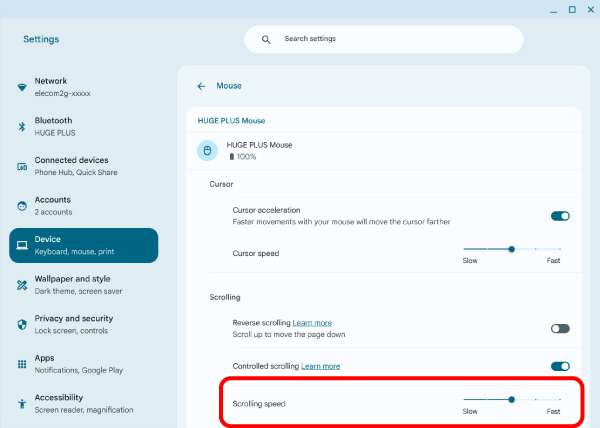
5) Adjust the number of lines to be scrolled at a time using the slider for "Scrolling speed” under “HUGE PLUS”.
Change scroll direction
Change the scroll direction for when the tilt wheel on the mouse is moved.
1) Select the battery icon at the bottom right.
2) Select (settings) on the Quick Settings panel.
The settings page appears.
3) Select “Mouse” under “Device”.
4) Click “Reverse scrolling” for this product to enable or disabled scrolling in the reverse direction.
The display name of this product changes depending on the device to its connection.
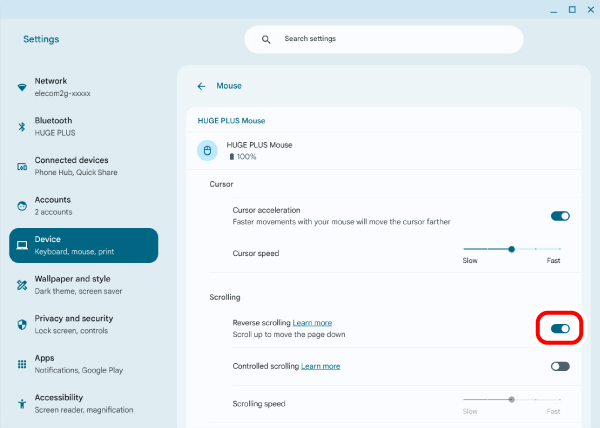
The scroll direction is the reverse of the direction of the tilt wheel movement when “Reverse scrolling” is turned on.
1) Use a finger (or a pen) to push the ball out from the underside.
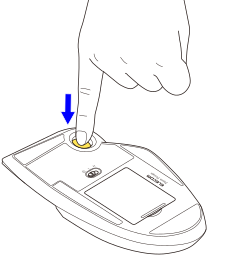
2) Use a cotton bud or something similar to clean off the dust accumulated on the contact surfaces of the three support parts.
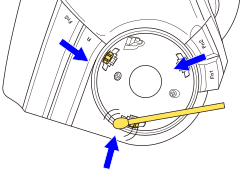
The optical sensor is a delicate component. Please do not subject the sensor to impact or damage it.
3) Gently wipe off the dirt on the ball with a tissue.
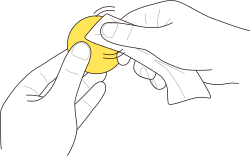
Do not use alcohol, cleaning cloths and other such cleaning tools when cleaning the ball.
The ball may perform poorly if the oil on its surface is removed.
4) Insert the ball into the trackball housing.
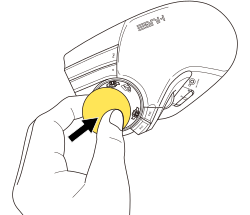
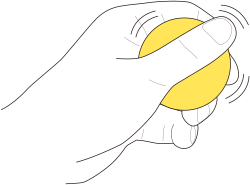
The ball may perform poorly if the oil on its surface is inadequate.
Hold and rub the ball in your hand for approximately 30 seconds if it performs poorly.
The oils from your hand should improve its performance.
When replacing the support parts, take care not to damage the sensor.
1) Use a finger (or a pen) to push the ball out from the underside.
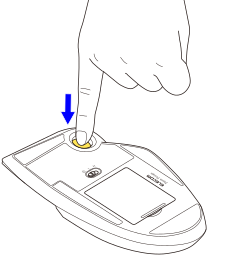
2) Open the accessory storage compartment cover and take out the removal tool.
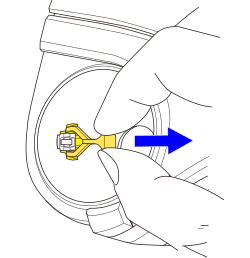
3) Hold onto the removal tool with your fingers and push it into the notch on the sides of the support part until you hear a click.
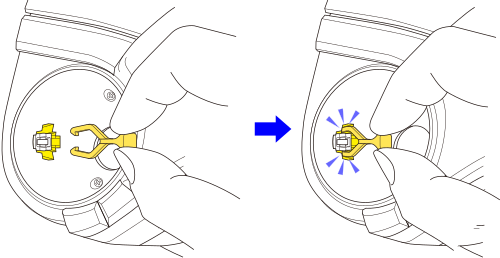
4) Pull the removal tool hard to remove the support part.
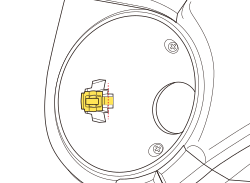
5) Fit the replacement support part into the inner catch.
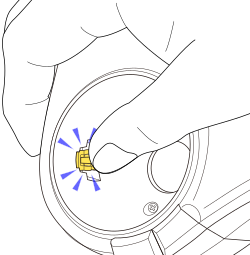
6) Press the support part in with your finger until you hear a click.
7) Insert the ball into the trackball housing.
Try the following if the trackball operates abnormally.
① Check that the power mode selection switch on the trackball is switched to either the H (high-speed mode) or L (low-energy mode) position.
② Check whether the charge on the rechargeable battery has become low.
The operation will become unstable when the battery level is low. Please refer to “Charging the battery (e.g., when using Bluetooth connection on Windows OS)” and charge this product.
*Turning off the power when the trackball is not used for a long period of time can extend the battery life.
③ Check the Bluetooth connection.
④ Change the position between your PC and the trackball.
This wireless device uses the 2.4 GHz band. Please use the trackball within range of the PC.
Average radio wave range
Non-magnetic surface (such as wooden desks): approximately 10 m
Magnetic surface (such as steel desks): approximately 3 m
*These values were obtained in ELECOM’s test environment and are not guaranteed. The 2.4 GHz band signal may be shorter depending on the environment you use it in.
⑤ Reboot the PC.
⑥ Please update your PC’s OS to the latest version.
⑦ Update the Bluetooth driver. (If you are using a Windows® PC.)
1) Right click “Start” and open “Device Manager”.
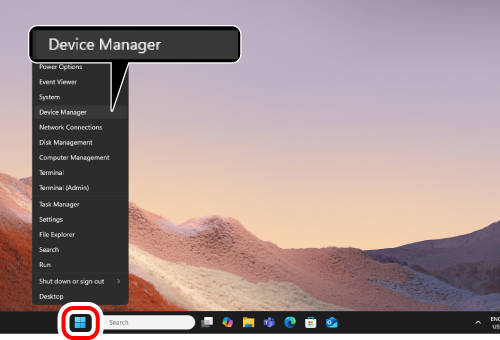
2) Click “Bluetooth”.
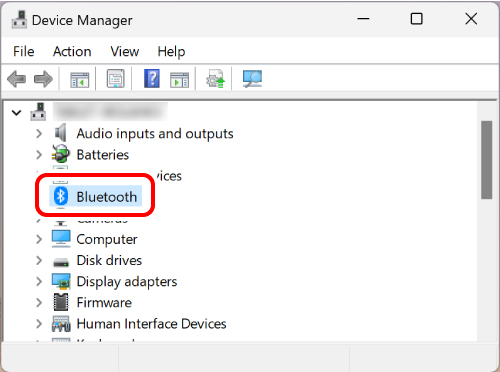
3) Check the manufacturer of the Bluetooth function installed on your PC.
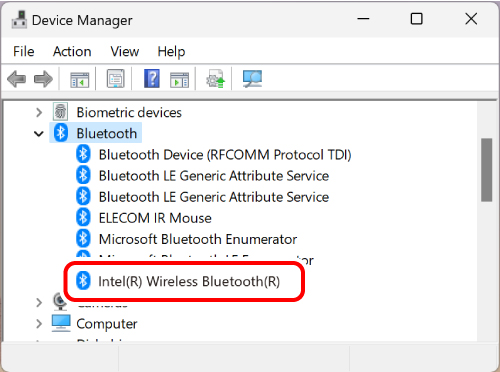
The following steps illustrate the procedure when the Bluetooth function is manufactured by Intel® Corporation.
For other manufacturers or if you do not know the manufacturer, check the user manual of your PC or contact the manufacturer of your PC for instructions on how to update the Bluetooth driver.
4) Search for “Intel® Driver & Support Assistant” on your browser and download the installer from Intel’s website.
5) Follow the instructions of the downloaded installer to install “Intel® Driver & Support Assistant”.
6) Click “Start” and then “All”.
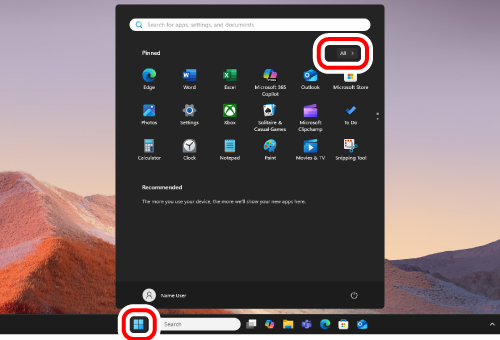
7) Click “Intel Driver & Support Assistant”.
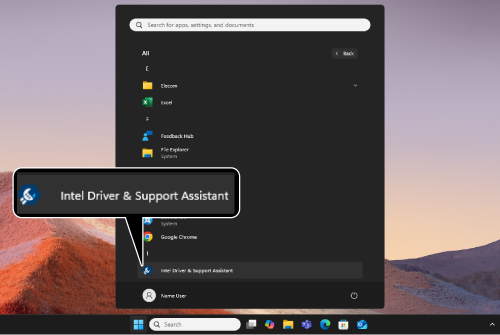
8) The Intel support page will automatically open on your browser and a list of drivers and software updates that can be used on your PC will be displayed.
9) Download “Intel® Wireless Bluetooth®” from the list if available.
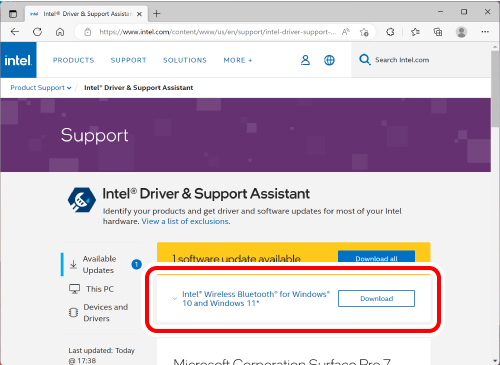
*The display on your browser may change depending on your PC environment and support page updates.
10) Follow the instructions of the downloaded installer to install the Bluetooth driver.
With this, the Bluetooth driver is updated.
⑧ When using the receiver or USB-connection Bluetooth receiver, change the receiver connection.
Depending on the specifications of the PC’s USB port or USB hub, other USB 3.0 devices used simultaneously with the trackball may generate noise that can worsen the 2.4 GHz signal in the vicinity.
Examples of USB devices that may degrade the 2.4 GHz band signal
You may be able to improve the situation with the following method.
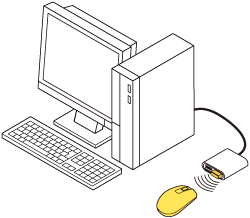
Connect the mouse receiver or Bluetooth receiver to another USB port away from other USB3.0 devices that are in use simultaneously.
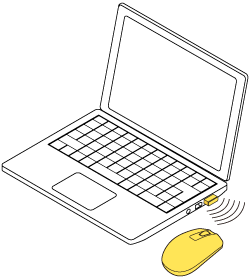
Connect the mouse receiver or Bluetooth receiver to a USB2.0 hub or to an extension cable.
⑨ Please check power saving settings for the connected device. (If you are using a Windows® PC.)
On Windows, in order to reduce power consumption, depending on the PC, the power of the USB-connected product is set to turn off automatically. You can change the settings in the following ways:
For Windows 11
1) Right click “Start” and open “Device Manager”.
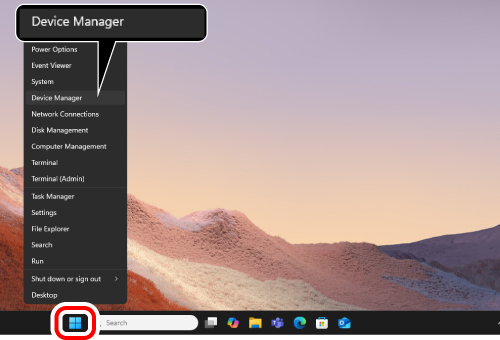
2) Click “Human Interface Devices”.
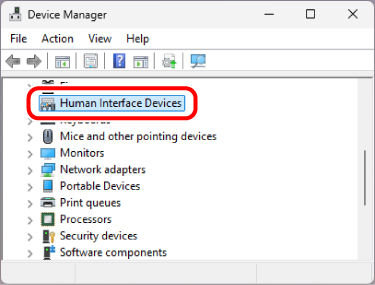
3) Double click “USB Input Device”.
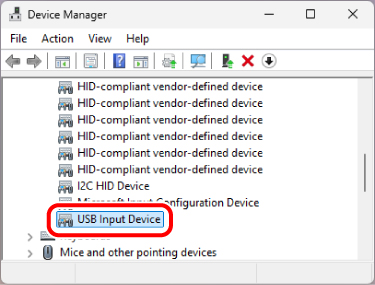
There may be several “USB Input Device” listed. In this case, preform the following actions for all the “USB Input Device”.
4) On the “USB Input Device Properties” page, click on the “Power Management” tab.
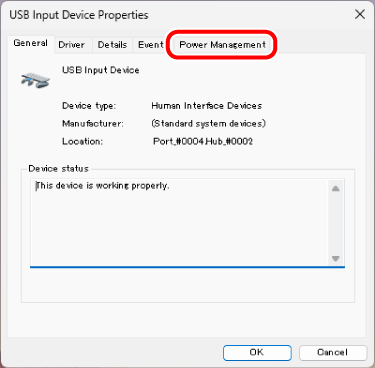
5) Click “Allow the computer to turn off this device to save power” to remove the check mark.
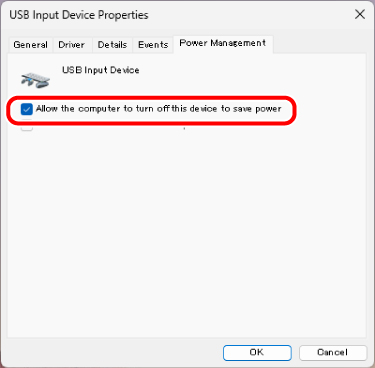
6) Click “OK” to confirm the settings.
7) Click the “×” (close) in the upper right corner to close “Device Manager”.
For Windows 10
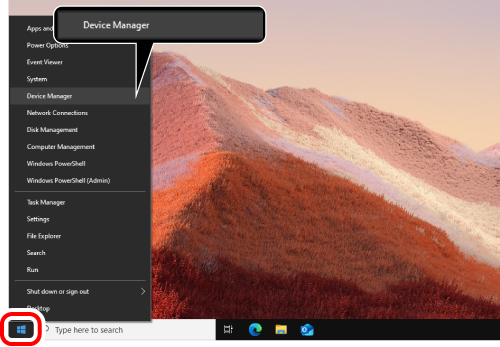
1) Right click “Start” and open “Device Manager”.
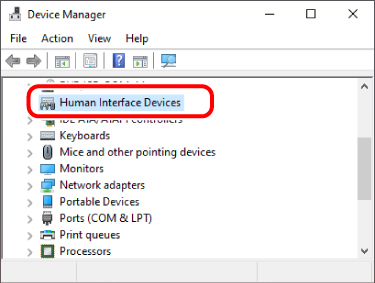
2) Click “Human Interface Devices”.
3) Double click “USB Input Device”.
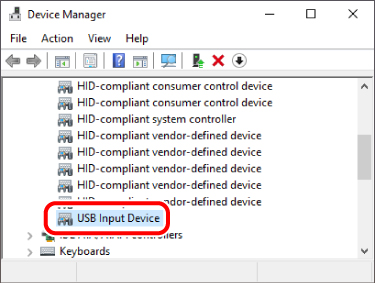
There may be several “USB Input Device” listed. In this case, preform the following actions for all the “USB Input Device”.
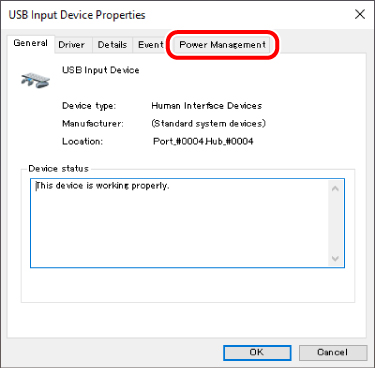
4) On the “USB Input Device Properties” page, click on the “Power Management” tab.
5) Click “Allow the computer to turn off this device to save power” to remove the check mark.
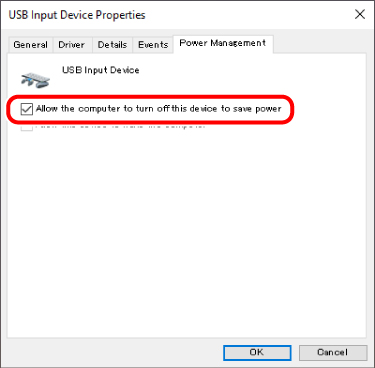
6) Click “OK” to confirm the settings.
7) Click the “×” (close) in the upper right corner to close “Device Manager”.